Monday, 14 October 2019

How to Access and Cancel your Meetings in Outlook

In this busy schedule, Outlook keep you updated about your future meetings. You can set up your meetings in Outlook so that you don’t forget about them. But, sometimes plans will change or get canceled. These times you would want to cancel your scheduled meetings from Outlook. You can reschedule as well as cancel your meetings in Outlook, whenever you want.


Accessing and canceling Outlook meetings
An Outlook meeting can only be canceled by the person who created it or sent the meeting request. Before going ahead to cancel a meeting remember that, it will be removed from the Outlook calendar and attachments for it will also be deleted from Outlook. The process for deleting an Outlook meeting is simple,
  1. Go to your desktop and start the ‘Outlook’ app.
  2. Now, navigate to the ‘View Switcher’ and find the calendar in which the meeting is scheduled.
  3. Open the calendar and look for the meeting scheduled into it.
  4. Double click on the meeting you want to cancel.
  5. Now, open the ‘Meeting’ tab from the top meeting invitation screen.
  6. Then click on the ‘Cancel Meeting.’ It will be the first button under the Meeting tab from the left side. Doing so changes the meeting invitation into the meeting cancellation.
  7. Now, you have to enter the reason for canceling your meeting into the meeting cancellation.
  8. Type a message explaining the purpose of canceling the meeting.
  9. And, click ‘Send Cancellation.’
Doing so sends a message to the attendees about the cancellation of the meeting, and remove it from your Outlook calendar.

Canceling a future recurring meetings
If you’ve scheduled a series of meetings in Outlook, which recurs in the future until the selected data, and want to cancel them, it is not so complicated. Here are the instructions to cancel future recurring meetings in Outlook.
  1. Start the ‘Outlook’ app.
  2. Now, navigate to the ‘View Switcher’ and find the calendar in which the meeting is scheduled.
  3. Open the calendar.
  4. And, double click a meeting of the series you want to cancel as you’ll do so, the open Recurring Item window will pop-up on the screen.
  5. Click the radio button of ‘The entire series’ option.
  6. Then, click ‘OK.’
  7. Go to the meeting invitation screen, and click on the ‘Meeting Series’ tab at the top.
  8. Look for the ‘Recurrence’ option in the Meeting Series option and click on it. Now, the Appointment Recurrence window will pop-up on the screen.
  9. Click on the ‘End by’ option.
  10. Now, select a date.
  11. Then click on ‘OK.’
  12. Type a message explaining the purpose of the canceling of future meetings in the message field.
  13. And, click ‘Send Update.’
Doing so sends a message to the attendees about the changes in the meeting, and removes the recurring meetings after your selected date from the Outlook calendar.

To read similar articles:How to Accessing and canceling Outlook meetings

Friday, 11 October 2019

Disney’s Little Mermaid Live-Action: Daveed Diggs as Sebastian’s VA


The upcoming Little Mermaid live-action adaptation is one of the most anticipated remakes by Disney, and now Daveed Diggs is told to be cast as the voice of Sebastian. Rob Marshall is going to direct the forthcoming live-action adaptation, which will be the next Disney reimagining. The adaptation is no surprise as the previous two releases have proved fruitful for Disney. Aladdin and The Lion King both engrossed over $1 billion globally this year. There has been no official date set for the movie; however, the studio is in the process of finishing up the film.

The casting process started by Disney casting Melissa McCarthy for the role of Ursula. After finding out a well-recognized name for the villain, Disney took a full 180-degree turn to cast the lead role. Halle Bailey was cast for the role of Ariel. Bailey is a singer and comparatively a newcomer in the industry, having worked in Grown-ish. The process continues, and now Sebastian’s voice actor has been found as well.


Daveed Diggs, best known for acting in Hamilton by Lin-Manuel Miranda, is now being talked about as the voice of Sebastian. Diggs’ fast rapping prowess was optimally utilized in the movie, and he went on to be featured in another hit named Blindspotting. He got recurring roles in films such as The Get Down, Black-ish, and Unbreakable Kimmy Schmidt. Diggs is also set to act as one of the leads in TV series, Snowpiercer.

Seeing the nature of Sebastian’s role, Diggs is expected to only act as the voice part. He is not likely to perform any performance or motion captures, unlike previous live-action Disney movies. Diggs’ voice acting prowess makes him an ideal choice for Sebastian as the crab is a critical aspect of some of the most iconic Little Mermaid songs. Songs such as Kiss The Girl and Under The Sea are going to be interesting to hear as Miranda is going to work on film’s music. So you can expect the tunes to be in accordance with Digg’s talents.

Diggs is the second singer addition in the cast as Halle is also one. The casting of Halle as Ariel went on to stir some online backlash. The backlash was utterly stupid and pointless, and Disney did not pay it any heed as well. Little Mermaid is the company’s one of the most profitable franchises, and its live adaptation seems promising as well. Disney is precautious in selecting the actors for the film, which goes on to show how much its success means to them.

Monday, 23 September 2019

How To View iMessage History On Apple

Checking the Apple message history is very easy. It is easily viewable by launching your iPhone Messages application and going through all the conversations. Here is how you can check your Apple Messages.


View iMessage on iOS

  1. Launch the messages application on your iPhone by tapping on it.
  2. Touch on any of the conversations that you have made. In case you are currently in any of the conversations, press “<” tab located at the upper-left edge of the smartphone’s screen.
  3. After opening any of the conversations, scroll the page up and down. Now investigate how far the conversation went on. Review its history including date of sending, time, location and so on. Here you won’t see your trashed messages or images.
  4. Hit on the “i” button located at the upper- right portion of the screen.
  5. Now examine the messages conversation’s media. It consists of two tabs side by side named “Images,” and the other is “Attachments.” One allows you to see all your videos and pictures. The second one shows you all the related documents that you have received or sent during your conversations.
  6. Touch on the “Done” button.

Viewing iMessage on Mac

  1. First of all, tap the Messages application to open. It is located under your dock. It looks like a bubble speech logo.
  2. To the extreme left portion of the messages, tap on any of the conversations you want to select.
  3. Now scroll up and down to see the history of your conversations.

Restore iTunes Backup

  1. First of all, connect your iPhone to your system. Make sure to use the USB wire to connect it.
  2. Now launch the iTunes app. It will open automatically, depending on the settings of your computer system.
  3. Now, wait for a while to link the computer with the iTunes.
  4. Now tap on the phone icon at the lower portion of the “Account” button.
  5. Tap on the button ” Restore Backup” located at the middle portion of the iTunes window under the “Backups” box.
  6. Now choose the restore point under “Restore from this backup” option.
  7. Hit on the “Restore” button to begin the restoration process by iTunes. You can look at the “Time remaining” bar on the lower portion of the pop-out box.
  8. Now click on the Home button.
  9. At last, provide your iPhone ID and password. Now you can see that all the iMessage start to restore with the other data.

Restore iCloud Backup

  1. Launch the “Settings” application.
  2. Check whether your smartphone is based on an up-to-date version of iOS or not. For checking its updates:
  3. Tap on “General” tab. Then go to “Software Update” option. Check whether the updated version is available or not, If it found, touch the “Download and Install” button to proceed.
  4.  Now go back to the “General” button.
  5. Press on the “Reset” button to reset all its settings.
  6.  Now touch on the option “Erase all content and settings.” In case the device asks for any password, enter it to perform further actions.
  7.  Hit on the “Erase iPhone” tab.
  8. Wait for a while to complete the process of resetting.
  9. Tap on the home tab.
  10.  Now choose your device preferences like the desired language, region, preferred data and wifi network.
  11. Now you have to provide the device ID and passcode to proceed.
  12.  Press on the “Next” button.
  13. Select the location services.
  14.  Type your password.
  15. Press on the “Restore from iCloud Backup” available under the “Apps and Data” page of your Apple iPhone.
  16.  Provide your ID and passcode once again.
  17. Hit on the “Agree” button.
  18. Touch on the backup time bar which you want to restore again.
  19.  Re-enter the passcode with your iPhone ID to retrieve your data.
Emily Watson is an inventive person who has been doing intensive research in particular topics and writing blogs and articles on hp printer support and many other related topics. She is a very knowledgeable person with lots of experience.

Monday, 16 September 2019

How To Transfer Images From iPhone To iPad Using iCloud

Images and pictures play an important role to display any information faster than written work. They work to transfer information to the viewer directly. iOS devices such as iPhone and iPad come with inbuilt cameras and users tend to store a lot of images in these devices.In this blog, we will discuss how to move photos from the iPhone to iPad quickly.

Transfer Photos using iCloud
1. Go to the iPhone’s Settings- a gear-shaped gray app basically situated on the home screen page of your iPhone.

2. Tap on the topmost section under the Settings menu icon and then hit on your Apple ID that holds your name and photo you have provided in it. In case you aren’t logged in, click on the “Sign In,” then type all the required information the device asks you like your specific Apple ID and password. Then click on the “Sign In” button to open your account.


You are not required to sign into your account if you are using an older version of iOS.

3. Hit on the “iCloud” button- the second part of the menu option.

4. Then touch on the “Photos” button at the upper part of the “APPS USING ICLOUD” segment.

5. Now slide the “iCloud Photo Library” bar to “On” mode. Now the bar-button gets green in color. This means that all the saved images and will be saved to your iCloud Photo Library. If you wish to save your device storage space, press on the ” Optimize iPhone Storage” option to keep the stock of smaller form images on your gadget.

6. Then slide the bar of “Upload to My Photo Stream” to “On” mode. This allows syncing of all the photos that you captured using your device to all the devices you have logged in providing your ID when they get connected to Wi-Fi.

7. Now go to your iPad’s Settings and open it- A gray geared shaped app icon present usually on the home screen of the device.

8. Now hit on your “Apple ID” option located in the topmost part of the settings menu option. In case you haven’t signed in to your phone, provide all the important details related to your account and then hit on “Sign In’ option to Log In. In case you are using an older form of iOS, this step is not required.

9. Touch on the “iCloud” option present under the second segment of the menu.

10. Hit on the “Photos” button.

11. Slide up the “iCloud Photo Library” bar to the “On” mode.

12. Tap the Home screen button- a circular shaped button present on the front part of your iPad device just at the base of your display.

13. Now go to the multi-colored “Photos” app and touch it to open.

14. Touch on the “Albums” menu option lies at the base of your iPhone screen.

15. Now hit on the ” All Photos” album section basically located in the top-left edge of the page. All your photos will start appearing in this album after syncing your device and iPad through iCloud.

Emily Watson is an inventive person who has been doing intensive research in particular topics and writing blogs and articles on lexmark printer support and many other related topics. She is a very knowledgeable person with lots of experience.

Sunday, 15 September 2019

How to Recover a Disabled or Locked Apple ID

An Apple ID is essential to access Apple services on your iPhone or any other Apple device. All of you have created it on your device while entering into the world of Apple services. Your Apple ID is used for purchasing apps or other things from the App Store or iTunes. Almost everywhere you’ll need a working Apple ID. Therefore, having your Apple ID disabled is the real problem. But because of some unknown reason, a message “Your Apple ID has been disabled” appears on the screen. Or sometimes without this message, a user fails to login. Once an Apple ID has been blocked, you can’t purchase or download the games or apps from the App Store, edit your Apple ID and so on. This happens with many users. However, seeing your Apple ID disabled seems big trouble, but recovering it actually pretty easy.


Reasons for having your Apple ID disable or lock
Mostly the message that tells you about your disabled Apple ID says it is because of security reasons. You may see a message saying ‘Apple ID has been locked/blocked or disabled’ for security reasons. These messages indicate that the Apple ID is disabled. There could be different reasons for disabling an Apple account, but most of them would be related to wrong entries of sensitive information. Apple disables an Apple ID when it has been tried to login too many times with incorrect password or security questions. This has been done to keep your account and info secure from misuse.

How to recover a disabled or locked Apple ID
Since, the problem occurs due to incorrectly entered password, or other related details. First, you should try logging in to Apple ID using a perfectly working keyboard. Many times a user makes the mistakes while entering the details, even multiple times. Maybe the touch of the device or a button of the keyboard is not working or working but not correctly, and hence the wrong details would enter. You can use a computer to log in to your Apple ID. If this re-enables your account, that’s good. But if not, then you’ll have to reset your password from Apple website. Here is how.

1. Go to “iforgot.apple.com” to open the Apple ID password reset page.

2. Try accessing your Apple ID by using your account username.

3. On the next screen, you’ll be asked for the phone number, insert your phone number in the given field and click ‘Continue.’ Now, a notification will be sent by Apple to the devices your Apple ID is linked so that you can use any of them to reset your password.

4. Select ‘Don’t have access to any of devices?’ option if you don’t have any devices linked to that Apple ID.

5. Now, you should follow the instructions screen prompts depending on the option you’ve chosen.

Once your Apple ID password has been reset, it will re-enable, and you’ll regain access to all of the Apple services which are blocked due to disabled Apple ID.

Emily Watson is an inventive person who has been doing intensive research in particular topics and writing blogs and articles on canon printer support and many other related topics. She is a very knowledgeable person with lots of experience.

Sunday, 1 September 2019

How to Block Pop-up Ads on Your Android Device

If you want to get rid of pop-up ads on your Android phone, then you have come to the right place. Pop-up ads are not only frustrating, but sometimes they can make your device unresponsive. Some pop-up ads are capable of transferring Trojan viruses into your device. In this article, you will learn some practical ways to block these kinds of ads from your device while surfing the internet.

There are three basic types of pop-up ads on Android: 
1. Pop-ups while surfing the internet

2. In-apps pop-up ads

3. Notification ads

Let's see how to stop these pop-up. Here we go. 


Source:Block Pop-up Ads on 

How Do I Stop Pop up Ads on My Android Phone?
If you want to make your internet surfing experience better on your smartphone, then you must disable or turn off these ads. Below are some methods to do just that:

Using Chrome In-built Popup Blocker
Chrome is the built-in browser in most of the Android phones, and it is also one of the most used browsers in the world. It is the most significant source of the pop-up ads and it means that disabling it will make you free from most of the pop-up ads. So our first step is to disable pop-up ads on your chrome browser. Google Chrome provides a built-in pop-up ad blocker in its Android browser. Here's how to disable pop up ads on your Chrome Android browser:

1. Open your Chrome browser on your Android phone.

2. Now head to the three dots appeared at the top of your screen.

3. Thereafter pressing the Settings from the list.

4. Now go to "Site Settings."

5. Head to "Pop-ups and redirects" option on your device.

6. Ensure that the slider toggle button located next to the "Popup and redirects" is turned off ( It will appear grey colored after disabling).

7. Now from now on your pop up ads will be blocked in the Chrome.


Under Site settings, you can also go to the "Ads" settings to prevent third-party ads. Under "Ads" ensure that the toggle switch is turned off. You will still see Google ads because these ads are not misleading or bad for your device.

One can also turn on the Data Saver in the Chrome browser because it prevents to load some irrelevant part of a webpage to save data. With this feature, you can also get rid of some ads and pop-up ads. To do that, see the guide below:

1. Head to three dots on the top-right corner of the Chrome.

2. Next, select settings.

3. Go to Data Saver.

4. Toggle the switch to turn on the feature.

Now you are all done and ready to browse the internet without any issue.


How to Block In-Apps Pop Up Ads on Android?
Now the pop-up issue while surfing the internet is resolved and won't quickly appear. But, how to stop in-app pop-up ads on your device? It is impossible to stop this kind of pop-up ads because ads are the primary way to earn money for developers. To get rid of these ads, you will have to buy the pro version of that app. Most of the developers offer that kind of feature, but not everyone does that. You have to stop using the app, which is showing you more pop-up ads. You can also switch off the data connection, which will also prevent ads from loading. However, turning off data is not a wise decision when the app or game uses the internet to run.


How to Block Notification Pop up ads on Android?
These ads are not pop-ups when it comes to the theory, but they are annoying just as a regular pop up advertisements. Only have to tap a few times on your screen to disable these frustrating pop-up. Follow the instructions given below to turn them off:


1. First of all, find out what app is causing the notification such as Chrome, or any other third party apps like Share-it.

2. Then head to the Settings app on your smartphone.

3. Go to Apps and notifications.

4. After that, go to the "All Apps" option. (These options may vary according to the device you are using)

5. Now select the app which is showing the notifications and then hit the "Block all" toggle switch to turn off notifications for that particular app.

This way, you will be able to get rid of notification ads on your device. 

Emily Watson is an employee at a top email service provider company in the day, and a technical writer at night. She is passionate about writing troubleshooting tips, beginner’s guides, news, and other articles on varied topics. She has written majorly on Printer customer support, brother printer and epson printer etc.

Friday, 30 August 2019

Netflix Will Release 10 Movies In Theaters Before Their Streaming Premiere

The streaming giant is trying to expand its stems in the movie industry as well. Netflix recently announced that the extremely lengthy negotiations with chief theater chains have come to fruition. Netflix will be releasing The Irishman in the theaters on November 1st; however, the movie will only be available to stream from November 27th. Martin Scorsese created the film, and it features Al Pacino along with Robert De Niro.

This is, however, the first step for Netflix because major theatres like regal and AMC stay put on a 90-day exclusive period for the movies. Netflix has been trying to stem its root in the customary film industry, but with significant theatres wanting to keep the film exclusive for some time, Netflix’s struggle does not seem to end. Netflix tends to attract new users with the exclusive movie and TV series releases, so this step appears to be a new strategy from them. Theaters that want to keep the audience attracted as long as possible before they are able to stream the film from home are not in sync with Netflix.


Source: Netflix Will Release 10 Movies In Theaters , Printer customer services

Netflix has been trying to gain awards and prestige recognition along with free public fame that comes with the awards. Director Steven Spielberg, who is a traditionalist, is concerned with the move, as he states that Netflix movies are” television movies” and should not be eligible for the awards. The step to release the films in theatres is just a part of awards bids because it is a criterion that the movies must run in theaters to be eligible for the awards. The Academy of Motion Pictures Arts and Sciences suggested earlier this year that Academy Award eligibility criteria should be adjusted, to make it harder for streaming films to win.

Amidst all this, Netflix is set to release ten movies in the theatres before their exclusivity on the streaming service. The list contains films like The Laundromat by Steven Soderbergh which will be released on September 7th in the theatres while being available to stream from October 18th. Marriage Story by Noah Baumbach will also hit the theatres on November 6th before its streaming availability from December 6th.

In comparison, Netflix only released four films in the theatres in 2018. The movies were Mowgli, Bird Box, The Ballad of Buster Scruggs, and Oscar-winning Roma. The movie should have at least a week-long theatrical run for being eligible for an Oscar. With The Irishman being a strong contender from Netflix, it is understandable why they are attempting to run it for several weeks in the theatres. This may mark Netflix’s name in the movie industry, as well.

The movies Netflix is set to release are:

- The Irishman​
November. 1st (in theatres); November. 27th (on Netflix)

- Dolemite Is My Name
October 4th (in theatres); October. 25th (on Netflix)

- I Lost My Body
November. 15th (in theatres); November. 29th (on Netflix)

- The King
October. 11th (in theatres); November. 1st (on Netflix)

- Earthquake Bird
November. 1st (in theatres); November. 15th (on Netflix)

- Atlantics
November. 15th (in theatres); November. 29th (on Netflix)

- Marriage Story
November. 6th (in theatres); December. 6th (on Netflix)

- The Two Popes
November. 27th (in theatres); December. 20th (on Netflix)

- The Laundromat​
September 7th (in theatres), October. 18th (on Netflix)

- Klaus​
November. 8th (in theatres); November. 15th (on Netflix)


Tuesday, 13 August 2019

How to Download Songs from Amazon Music for Free

At present, Amazon Music is one of the most trending music services. It has millions of songs from all over the world. You might be thinking about how to get free songs from Amazon Music Store, where everything is available at a price. Amazon Music provides two popular plans, Unlimited plan that allows subscribers access the entire songs available on it, and Prime members can access over two millions of songs with ad-free as well as on-demand service. Although, both of these two services are unlocked with a paid subscription. However, Amazon Music gives 30-day free trial to each new user with all the features of paid subscriptions. Along with the paid plans, you’ll also get a huge collection of free music and albums on Amazon Music that you can download too. Here is how to download songs from Amazon Music for free.


Source: Download Songs from Amazon MusicDell Printer Support Number

How to search and download music for free from Amazon Music
You won’t get the free songs on the main page of Amazon Music. You’ll have to do a little search to find them. Finding free music on Amazon Music is not too difficult if you use service filtering. Here is how.

To view a list of free songs on Amazon Music: Visit Amazon Music: Free Song page. Here you’ll also get some songs that are marked as ‘Prime,’ these songs are only free for Amazon Prime members.

To view a list of free albums on Amazon Music: Visit Amazon webpage for free songs and albums.

1. Once you reach the page for free songs or albums, you can filter the results. Choose a music category from the Free heading under the left column to filter the songs.

2. Click on a song that to know more about it such as duration, artist, title, or album. If you want to play the song, click on the arrow icon next to the title of the song.

3. Go through the free songs or use the ‘Sort by’ button to search view the songs as you want.

4. When you get a song, you want to save to your device, click the ‘Free’ option or click on the ‘Cart’ icon. Doing so adds that song to your MP3 cart.

Tip: If you want to download multiple free songs or albums, then instead of the ‘Free’ button, add the songs or albums to your Shopping cart.

5. Now, you’ll be prompted to enter the details of your Amazon account. Provide your account information or click on ‘Create an Amazon Account’ to create a new account for you.

6. Check that the total is zero on the Review Order screen, and then click on the ‘Place Order’ button to proceed.

7. Now, click ‘Download purchases’ to save the songs to your device storage.

If you want to listen to the song, just click ‘Play Now’ button. If you’ve Amazon Music app installed on your Android or iOS mobile device, then you can also enjoy your free Amazon music there.


Emily Watson is an employee at a top email service provider company in the day, and a technical writer at night. She is passionate about writing troubleshooting tips, beginner’s guides, news, and other articles on varied topics. She has written majorly on hp printer support, dell printer support and brother printer etc.

Sunday, 4 August 2019

How to Fix Android Camera Issues


A camera error in an Android device is one of the most usual problems a smartphone user runs into. There can be a variety of reasons as to why your camera is not working correctly. Here are some of the most common reasons: 
  • It could be because of the low device storage.
  • Camera application incompatibility can be one of the reasons.
  • Low RAM can cause the camera to malfunction.
  • Even third-party apps mess up with the device software.
  • The damage could also be physical.
So here are some fixes that you can apply to work your phone camera properly.’


Fix 1 – Restart the Android Device
The first and the most straightforward process that can fix the camera is restarting your device. It is listed below:
  • Press the power button of the device for two to three seconds.
  • A pop-up bar will appear on your screen.
  • Tap on the Reboot/Restart option.
After the device restarts, check whether the camera is fixed or not. If not, then move to the next step.

Fix 2 – Remove the Battery
If your device has a detachable battery, then you can try to remove it from the back and clear up the lens. It works as a pseudo reset and does not result in any data loss. It will close any running app in the background, and if there is a smudge on the lens, then you can clean it.

Fix 3- Force Stop the App
To force stop the application:
  • Go to the settings section.
  • Go to the applications or manage applications.
  • Tap on the camera app icon.
  • Press Force Stop and then disable the App.
Restart your device afterward without opening the app to check whether the camera is fixed or not, otherwise, go to next step.

Fix – 4 Clear Cache and App Preferences
Clearing the temporary cache and app data can fix the camera. Do the following:
  • Open Settings and find app section.
  • Locate the camera app you are using.
  • Tap clear cache and app preferences.
After that, reboot the device without opening the app and see if the camera issue has been resolved. If not, then go to the next step.

Fix – 5 Uninstall third-party camera apps
Be it any camera app you have installed, remove it. Either long-press on the app or go to the settings section to remove it from the device. Again reboot the device to check whether the app is working or not. If not, then try the next step.

Fix – 6 Boot into Safe Mode
Safe mode allows your device to run on factory settings and disables all third-party apps. Do not worry; they will start working afterward. To boot into safe mode.
  • Long press the power button.
  • Then on the pop-up bar long-press, the shutdown button.
  • The device will ask whether you want to boot into safe mode or not. Tap yes.
  • After the device boots, check the App.
  • If not working, then clear the app data while in safe mode and reboot the device.
This will most likely fix the app. If not, then try the next step.

Fix – 7 Reset Factory Settings                                                                                                            
  • This option will remove all the data from your device, so make sure you make a back up of it.
  • Go to the Settings section.
  • Locate personal and find Backup and Reset option.
  • Tap Factory reset and select confirm
You can also shut down your device. Here’s how: 
  • Long press Power button with Volume up/down button.
  • Navigate through Volume buttons and locate factory reset.
  • Tap and confirm.
If this does not fix the problem, then the malfunction is most likely physical.
 

Wednesday, 24 July 2019

Top 5 Alternative Operating Systems to Use in 2019

Windows, Linux, and macOS are undoubtedly the best operating systems available for users these days. However, there are various other options for those who need an ideal alternative. The best five alternative operating systems are mentioned here for you.

Alternative Operating Systems

1. eComStation
If you need best-in-class stability and don’t want to spend much, eComStation is the best solution for you. It is supportive of open source apps and is very secure. Though, its major drawback is that you will have to pay a fixed price to use it. You can try the demo first before investing in this operating system. There are plenty of open-source software programs that come ported in eComStation such as VLC, OpenOffice, Firefox, etc.

2. ReactOS
ReactOS comes as the perfect alternative for Windows 2003. It is open-source and uses no proprietary Windows code. This open-source software program is made specially to work with Windows applications and drivers. Though it will be hard for you to play top-notch software or games. ReactOS consists of various notable apps such as Opera, LibreOffice, and Firefox. As it is free, you can try it out.

3. Chromium OS
People who spend most of their time on the internet must know about Google Chrome. It is made especially for fast internet browsing experience. Google also offers Chromium OS, which a lot of people don’t know. Most of the apps in Chromium OS, however, are made especially for web only. You don’t get specific desktop applications as the whole interface is browser-based. Users will not have to think much about installation, management, and update. Try to experiment with this operating system and see if you like it or not.

4. Haiku
Haiku comes as a successor of BeOS and is an ideal operating system for use. The last major release of this OS was, however, around three years back. If you can’t keep your desktop clean and need a dedicated web browser for cleanliness , this one is a perfect fit for you.

5. FreeDOS
Even today, a lot of software depends upon MS-DOS. If you need an operating system that offers active development as well as a stable environment, you must choose FreeDOS. It is capable of running games and even managing Windows 3.1. FreeDOS can run any compatible program that works with MS-DOS.

Overall, these are the best alternatives that you can consider if you are not satisfied with your existing operating system.


Emily Watson is an employee at a top email service provider company in the day, and a technical writer at night. She is passionate about writing troubleshooting tips, beginner’s guides, news, and other articles on varied topics. She has written majorly on lexmark printer support, epson printer support and brother printer etc.

Wednesday, 17 July 2019

How to Fix iOS Software Update Failed Error

Imagine there’s an updated version of the software available for your iPhone, and you cannot download it in your phone. Updating your iPhone’s software with the latest updated version fails due to several reasons. But it also causes disappointment to users when they know there’s an updated version available but cannot download it. If you are facing the same issue, then you have come to the right place. Here I have listed some of the most effective steps and tips to resolve your iPhone’s software update failed error.


Update By iTunes
One of the easiest ways to get an update is by downloading the latest version of iTunes on your PC. A user needs a Wi-Fi or an Internet connection to install iTunes on the computer. Connect your iPhone with the computer and click check for update option, and you are good to go. The updated version will be installed in no time on your iPhone.

Reset Network Settings
Most of the time, the problem lies in the network connection you are using. Just check the source of the Internet, your WI-FI router or mobile cellular data before proceeding with the update. Just go to the network settings on your iPhone and reset the settings to the default. It will automatically resolve the network issue in a single go.

Check The Quality Of Network
Quality and strength of the internet connection must be good before downloading that latest updated software version. It usually fails to download with weak internet connectivity. Weak mobile data is the root cause for this issue, so look for a WI-FI connection instead.

Wait a While Before Retrying
You may face unable to install updates issue if you try to install updates back to back without taking the gap. When an updated version of software gets available, millions of users around the world come together to download it, which results in busy servers and errors. So, always wait for some hours before retrying to get the update.

Restart Your iPhone
Restarting cellphones and now smartphones is one of the most ancient ways to get any problem resolved. In case of getting an update, restarting and rebooting your iPhone can fix the failed update error. Rebooting your iPhone automatically take all the settings to the default and can fix the update download problem too.

Space Storage
Every smartphone or iPhone user is aware of the availability of space on your smartphone to download an update or anything. Free space is always required to download an update or any file on iPhones. Not having enough storage space can be the fundamental reasons behind you being unable to update your iPhone.

Wednesday, 10 July 2019

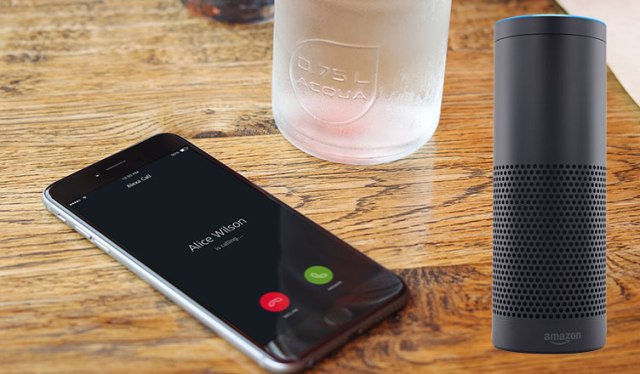
How to Make and Answer Phone Calls with Alexa

If you are often packed with work, then you may have experienced how hard it is to answer a phone call when you are busy doing something else. Sometimes it is frustrating to receive and make a call.


But with the help of Amazon Echo speaker, one can make and receive calls with just saying “Call on Peter’s mobile.” If you live in the US, then congrats because only certain countries support the feature of Alexa Communication.

How to Sign Up for Alexa Communication?
To make and receive calls with a voice command, first, we need to sign up for Alexa Communication.

Signing up for Alexa communication is simple:
  1. Launch the Alexa app on your smartphone.
  2. Tap on the Communication button(it appears like a tiny speech bubble).
  3. Now follow the on-screen guidelines to verify your phone number.
  4. Once you have done this, then you are ready to move ahead.

How to Make And Receive Phone Calls with Alexa?
How to make phone calls with Alexa?
Alexa Communication allows one to make calls to a person landline, mobile, or Alexa speaker with a voice command.

If you want to call your friend Sara on her mobile phone, then just say, “Call Sara’s mobile.”

To call on her landline say, “Call Sara on her home phone.” (Sara’s phone and landline must be saved in the right manner)

You can also call on her Echo Dot speaker(if she had one) by saying “call Sara’s Echo.”

How to Receive Calls with Alexa?

Receiving calls with Alexa smart speaker is a bit limited function. If you stay in the UK, then only Videophone Red Pay users can take advantage of hands-free calling with Alexa.

Receiving calls with Alexa is simple. When you receive a call on your speaker, then Alexa will tell you the name of the person who is calling. To receive the incoming call, just say, “answer.”

If you want to reject a call, then you can also do that by saying “ignore” to your Alexa. But, it will just stop the ringtone sound of your speaker not decline it. And your smartphone will still be ringing. You can mute your smartphone ringing volume to hear the ringtone only in your smart speaker. It will allow you to ignore the unwanted call.

With Alexa, making and answering phone calls has become super easy and convenient. Hopefully, the Alexa Communication service will be rolled out for other countries as well.

Wednesday, 3 July 2019

How to Troubleshoot an Epson Printer that Prints Nothing

Epson printers are one of the most used printers across the globe. The company is also the biggest manufacturer of printers, and they manufacture various types and sizes of printers. In addition, Epson also produces many electronic gadgets such as desktop, scanners, projectors, television, and more. But, the company is most famous for printers. If you’re also using Epson printer in your office or home and it is only printing blank pages. No need to worry it’s not the big issue, try these solutions.


Solutions to troubleshoot an Epson printer that prints nothing or blank page:
1. Check the cartridge

2. Check if the cartridge is connected

3. Make sure the paper size is correct

4. Connect with the right interface cable

5. Update the printer’s drivers

Here is the detailed guide for performing these solutions to troubleshoot not printing or blank page printing issue.

Check the cartridge
Before anything, you should have to check the cartridge of your printer. Possibly, you’ve already checked it, but if you haven’t, then check if it is empty. An empty printer’s cartridge can cause printing problems. This will also help to find the real trouble. If it is empty, then definitely this is the reason you’re not getting the prints.

Check if the cartridge is connected
After checking for the empty cartridge, try printing something with the printer. If still, nothing comes out from it, check whether the cartridge is connected correctly. A disconnected or improper connected cartridge results in blank pages as output from the printer. Maybe this could be the reason for the problem, try checking your printer’s cartridge. If you didn’t know anything about it, then check the user guide or take someone’s help. Reinstall the cartridge properly into your Epson printer and print a page. If still, a blank page comes out, apply the next solution.

Make sure the paper size is correct
Sometimes a wrong selected page size while printing also prints a blank page. Make sure you’ve chosen a right page size while giving the command for printing. Mostly printing issues in Epson printers occurs only because of this. If you haven’t checked the page size or changed it accidentally, change the print settings back to the correct size. After tweaking settings, give a command to your Epson printer to print a page. Now, check if it prints correctly. Use the next solution, if your Epson printer prints nothing.

Connect with the right interface cable
Shut down your computer and Epson printer, and check whether they are correctly connected. Also, verify the interface cable through which the devices are connected matches the specifications for the computer and printer. Make sure the cable is inserted in the right port of the devices. And the interface cable should be connected directly with the machine without any middle device like extension cable or printer switching board. If the problem persists, update your printer’s driver.

Update the printer’s drivers
After a time, older drivers fail to work or don’t work as earlier. This happens because of corrupted data or files. Not only printing issues older or corrupted drivers also create connection problems and many other major troubles. Here is how to update Epson printer’s drivers in Windows 10.

1. Open Windows settings. You can open it easily from the Start menu.

2. After entering into settings, go to ‘Update and Security’ section.

3. Then click on ‘Windows Update’ at the top in the left sidebar.

4. Now, hit the ‘Check for updates’ button at the center of the display.

Your Windows 10 PC starts finding the pending update and begins installing it automatically. Updating process usually takes time, wait for it to finish. When updates install successfully, restart your PC to apply changes.

These solutions will troubleshoot your Epson printer that prints nothing.

Tuesday, 25 June 2019

How to Connect Physical Game Controller to Your iPad

In case you want to take the iPad gaming to a higher level, then you have to connect a physical game controller to your iPad. Go through this article to know more about this procedure.

Physical Game Controller to Your iPad
Here’s How to Connect Physical Game Controller to Your iPad
Steps to Connect iPad MFI Certified Controller
• Firstly, you need to enable the Bluetooth controller and turn it into the pairing mode.

• You can do this procedure by pressing on the Bluetooth key on your device.

• Go to the Settings application given on the iPad.

• Choose the Bluetooth option.

• Make sure that the Bluetooth option is enabled a green slide button.

• After that, press on the name of the device given below the Other Devices option to connect a physical game controller to your iPad.

• Now, you have successfully connected the iPad MFI certified controller.

Steps to Connect the Xbox One Controller to Your iPad
• Enable the Xbox One controller.

• Place it into the pairing mode by pressing on the Xbox option which resembles a middle round symbol option.

• Launch the Settings tab.

• Choose the Bluetooth option.

• Make sure that the Bluetooth is enabled which resembles a green slider button.

• Then, click on the Xbox One controller given below the Other device to connect a physical game controller to your iPad.

Steps to Connect the PlayStation Controller to Your iPad
• Go to the Cydia application.

• Find the Controllers for All application.

• After finding it, start installing the application.

• Start connecting both the iPad and PlayStation controller to your Windows or Mac computer.

• You need to start downloading the Pair Sixaxis Controller application on the Windows or Mac computer.

• Now, launch the Pair Sizaaxis Controller application.

• Choose the Pair Controller to iPad option.

• You have to unpair the PlayStation controller and iPad from the Windows and Mac computer.

• After opening the game on the iPad, it starts indicating that you can use PlayStation Controller now.

• Press on the PlayStation option given on the controller for connecting it.

• Now, you have successfully connected the PlayStation controller to your iPad.

Steps to Connect a GameVice Controller to Your iPad
• Make sure that you have brought a correct version of the GameVice controller for the iPad.

• Start connecting the ride side of the GameVice Controller to the opposite side of your iPad.

• Now, you have successfully connected a GameVice controller to your iPad.

Tuesday, 18 June 2019

How to Edit the Hosts File That Require Admin Privileges

The DNS changes the domain names into IP by using the Hosts file. This will permit you to register a particular domain name with the selected IP address. The changes you will do will only apply to the computer. You can use this IP address to redirect one of the sites and create a custom link to use it on your IP address. You have to edit the Hosts file that requires admin privileges by following the instructions mentioned below.

How to edit hosts file

Here’s How to Edit the Hosts File That Requires Admin Privileges

Run Notepad as an Administrator

• Click on the Windows button so that the start menu gets open on the screen.

• Enter Notepad into the search bar. You will get its symbol at the upper side below the best results menu.

• You need to right-click on the Notepad.

• Choose the Run as administrator option.

• After opening the Notepad, you need to choose the file.

• After that, click on the Open button.

• Click C:\Windows\System32\drivers\etc.

• You need to move from the Text Documents to All files option.

• Select hosts by going to the pull-down list.

• Type the changes you have made, and you need to save those changes.

Go Through the Read-Only Host File in Notepad
• You need to go to C:\Windows\System32\drivers\etc.

• Search for the hosts’ file.

• You have right -click on the host file.

• Open the Properties option.

• Next, to the end of the screen, you will get the attributes option and unselect the Read-only option given near to it.

• Click on the Apply option for saving the changes you have done.

• Press on the Ok button to verify the changes you have made.

Transfer the Hosts File to Any Other Folder
• To edit the hosts file that requires admin privileges, you need to press on the C:\Windows\System32\drivers\etc.

• Now, you have to move the hosts’ file to any other folder such as Program Files.

• Go to the hosts’ file by going to the Programs Files through the text editor for example Notepad.

• Now you can edit hosts file that requires admin privileges.

• After that, the hosts file to go back to the C:\Windows\System32\drivers\etc folder.

Modify your Host File
• Go to C:\Windows\System32\drivers\etc.

• Search for the hosts’ file.

• After getting it, you need to right-click on the hosts’ file.

• Choose the Properties option.

• After that, go to the Security menu.

• Click on the Edit button located in the center of the display.

• You will get the menu list of all the available users.

• Find the username and check whether you have full access.

• If you do not have, press on the Add option.

• Enter the username given below the name of the things so that you can choose them.

• Press on the Check Names option.

• Press on the OK button.

• Now, the username will star showing on the menu list.

• Press on the username.

• Allow it Full Control.

• Press on the Apply option for saving the changes you have made.

• After that, press on the OK button.

Emily Watson is an employee at a top email service provider company in the day, and a technical writer at night. She is passionate about writing troubleshooting tips, beginner’s guides, news, and other articles on varied topics. She has written majorly on canon printer support, brother printer and epson printer etc.